
GPT IMAGE 2 TUTORIAL
How to use GPT Image 2 for product visuals, posters, and ad variants.
GPT Image 2 becomes more useful when you stop asking for “a nice image” and start defining an asset system. This tutorial shows how to move from a product brief to a hero visual, text-aware poster, thumbnail, and controlled edit while protecting product details and campaign claims.
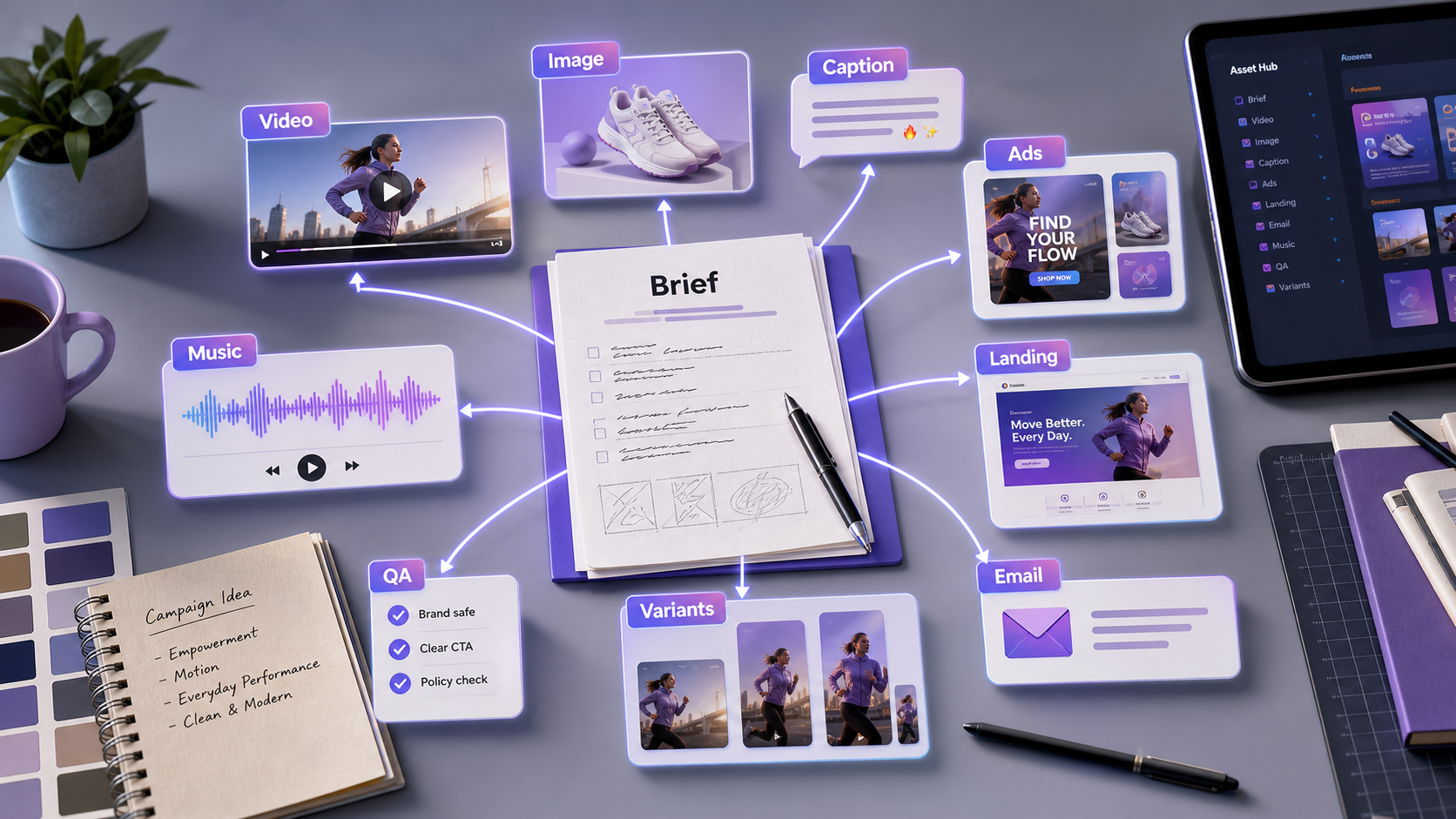
Summary for fast readers
- Define the asset job before describing the style: hero image, poster, thumbnail, ad variant, or edit.
- Use reference images to anchor product identity, composition, or visual tone, and state which details must not change.
- Keep in-image copy short, exact, and separated from claims that still need human review.
- Generate one controlled direction first, then create variants by changing one variable at a time.
WHAT THE SOURCES CONFIRM
GPT Image 2 is most useful when the image has a job.
OpenAI's current prompting guidance describes image generation as an image-in, image-out workflow that can use reference inputs, structured instructions, and edits. Its public materials emphasize following detailed visual instructions, working with text and layout, and refining an image rather than treating the first render as the finished design.
That does not mean every output is automatically production-ready. Product labels, small type, prices, claims, faces, and fine details still need inspection. The best workflow makes those review points explicit before the image is exported or placed in an ad.
WHO IT IS FOR
Use this workflow when one brief needs several visual outputs.
Product marketers
Create a campaign key visual, a product-in-context scene, and a set of ad crops without losing the product's identity.
Social creators
Build thumbnails, cover art, quote cards, and visual hooks that match the story of the post.
Designers and editors
Use image references and targeted edits to explore directions, then keep a human in the final typography and brand check.
Growth teams
Test background, layout, offer framing, and crop variants while holding the core message steady.
THE WORKFLOW
Follow eight steps from product brief to approved variant.
- Define the asset. Say whether you need a product hero, poster, thumbnail, ad image, editorial scene, or edit. Include where it will appear.
- Write the product truth. List the shape, material, color, label, camera-facing side, and any detail that must stay recognizable. Separate confirmed facts from creative direction.
- Choose the composition. Describe subject placement, camera angle, negative space, crop, and what the viewer should notice first.
- Set the visual treatment. Add lighting, surface, environment, palette, lens feel, and the emotional tone that supports the campaign.
- Add text only when it has a purpose. Provide the exact headline, hierarchy, placement, and safe margin. Keep the copy short enough to inspect.
- Generate one proof. Check product fidelity, composition, text, and unintended objects before making more variants.
- Edit one variable at a time. Ask to change the background, crop, color mood, or headline space while preserving the product and camera angle.
- Build the variant matrix. Expand the approved route into platform crops, thumbnails, ad angles, and supporting visuals, then run the same QA checklist again.
PROMPT FRAMEWORK
Write prompts in layers: job, subject, composition, treatment, constraints.
Create a landscape campaign hero image for [product] used on [landing page or ad placement]. Subject: [product description and non-negotiable details]. Composition: product on the [left/right/center], [amount] of clean negative space for headline, camera at [angle], crop-safe edges. Scene: [environment]. Lighting: [lighting]. Material detail: [texture/reflection]. Mood: [tone]. Do not change the product shape, label layout, or color. No extra logos, no invented claims, no unreadable text.
Create a vertical promotional poster for [event/product]. Use the uploaded product image as the identity reference. Place the exact headline “[HEADLINE]” at the top, the short support line “[SUPPORT LINE]” below it, and “[CTA]” in a button-like area near the bottom. Keep all text inside safe margins, use a clear hierarchy, and leave the product unobstructed. Do not add words or change the provided copy.
Edit the uploaded image by changing only the background from [old setting] to [new setting]. Keep the product, label, camera angle, lighting direction, scale, and shadow shape unchanged. Match the new background's perspective and color temperature to the original. Do not add text or extra objects.
SCENARIO
One reusable bottle, four useful campaign images.
Imagine a reusable travel bottle launching for commuters. The product truth is simple: matte teal body, black lid, compact cylindrical form, and a small white label. The campaign promise is “carry cold water without adding clutter.” Start with one editorial desk scene, then keep the product reference and message fixed while changing the delivery format.
| Asset | Change | Keep constant |
|---|---|---|
| Landing-page hero | Wide desk scene with negative space for the headline. | Product color, lid, label, and calm commuter mood. |
| Social thumbnail | Closer crop with stronger contrast and a readable short hook. | Product silhouette and campaign promise. |
| Paid ad variant | Product beside a tote and train window, with room for a CTA. | Product details, factual copy, and audience context. |
| Detail edit | Change only the background from desk to station platform. | Camera angle, lighting direction, scale, and label. |
BAD VS BETTER
Specific constraints make image review possible.
| Weak prompt | Better prompt | Why it is stronger |
|---|---|---|
| Make a beautiful product ad. | Create a square paid-social image for a matte teal travel bottle. Place the bottle on the right, leave the left third empty for one short headline, use soft morning window light, and keep the label and lid unchanged. | It connects the visual decisions to a placement and a reviewable product truth. |
| Add some text about staying hydrated. | Use the exact headline “Cold water. Less clutter.” in one line at the top left. Do not add a second slogan, price, or unsupported benefit. | Exact copy and boundaries reduce invented language. |
| Make five different versions. | Create four variants that change only the background: desk, train window, gym locker, and park bench. Keep camera angle, product scale, label, and headline space constant. | Controlled variation makes the results easier to compare. |
TEXT, EDITS, AND QUALITY
Use the model for exploration, then review like a designer.
For text-heavy layouts, provide short exact copy and a clear hierarchy. Ask for one headline, one support line, or one CTA before trying a paragraph. Inspect the image at the size and crop where people will actually see it; a poster that looks readable at full resolution may fail as a mobile thumbnail.
For edits, use the “change only X; preserve Y” pattern. Name the invariant details: product silhouette, person identity, logo placement, camera angle, shadow, or color temperature. If several things are wrong, repair them in separate passes so you can tell which instruction caused the change.
For more general product-image patterns, continue with the AI product image prompt guide or use the GPT Image 2 vs Nano Banana comparison when choosing an exploration route.
DELIVERY CHECKLIST
Approve the image only after these checks pass.
Product fidelity
Shape, label, material, color, and key details match the approved reference.
Composition
The focal point is clear, the crop is safe, and headline or CTA space is intentional.
Text
Copy is exact, legible, correctly spelled, and still readable at the final placement size.
Claims
Nothing in the visual implies a performance, price, testimonial, or result that the brief cannot support.
Variants
Each version changes a planned variable rather than drifting into a different campaign.
Rights and access
Check source-image permissions, likeness, logo usage, current tool terms, and commercial approval before delivery.
COMMON MISTAKES
Keep the image workflow controlled.
Style before purpose
A glossy style cannot rescue a visual with no clear placement, audience, or message.
Too much copy
Long paragraphs make in-image typography harder to inspect. Use the image for a short message and place detail in HTML or the caption.
Changing everything at once
Hold the product, crop, and message steady while testing one new background or lighting route.
Skipping final-size review
Check the asset where it will appear: mobile feed, thumbnail, poster preview, or landing-page hero.
FAQ
GPT Image 2 questions for practical image production.
Is GPT Image 2 only for making brand-new images?
No. OpenAI's public guidance describes image inputs and editing workflows as well as generation. Use a reference image when you need to preserve product identity or a visual direction, and state what must remain unchanged.
How much detail should a prompt include?
Include the details a reviewer can observe: asset job, subject, composition, lighting, text, crop, and constraints. Add more detail when it removes a real ambiguity; avoid decorative filler.
Can I trust text inside the generated image?
Treat it as a draft until you inspect the exact wording and final-size readability. Keep copy short, provide it verbatim, and verify every claim and brand term manually.
Should I use GPT Image 2 for final advertising artwork?
Use it to explore and refine campaign directions, then apply human review for product accuracy, typography, claims, rights, accessibility, and channel requirements before publishing.
PRACTICE THE ROUTE
Build one visual system instead of one isolated image.
Bring a product brief, a reference image, one placement, and one short message into ChatArt Pro. Start with the hero visual, then derive the thumbnail, poster, edit, and ad variants from the approved direction.